






一時期 VSCode を使うも Atom に戻っていたのですが、 どういうわけか GREP 検索ができなくなってしまい 再び VSCode を使うことにしました。
どうせならプラグインも見直してしっかりメインエディタになるように設定もしたのでそのあたりを書き留めておきます。
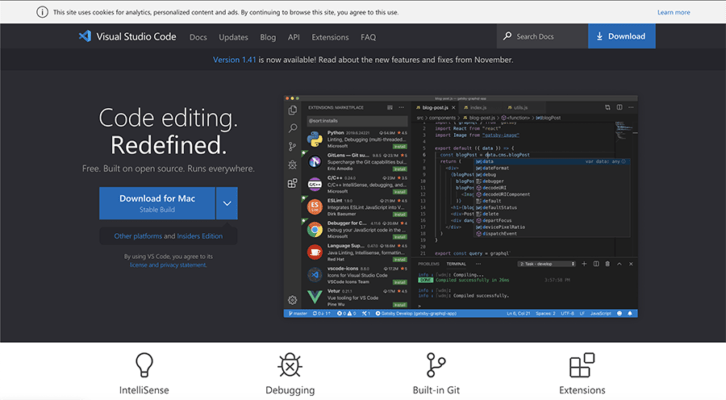
Visual Studio Code(VSCode)とは
Microsoft が提供しているオープンソースのエディタで、MacOS・Windows・Linux で動作します。
gulp も webpack も使わずエディタベースでSASS(SCSS)コンパイルとライブリロード
自分が使う分には gulp なり webpack なりを使うのですが、人に教える時にもう少し手軽に使える方法が欲しいと思っていたところ、最近エディタ単位で SASS のコンパイルができると聞いたのでプラグインをインストールしました。
DartJS Sass Compiler and Sass Watcher
2022年1月22日追記
Sass の @import が廃止になるのでこれまでは Live Sass Compiler を解説に入れていましたが、Dart Sass のコンパイラの解説を入れておきます。
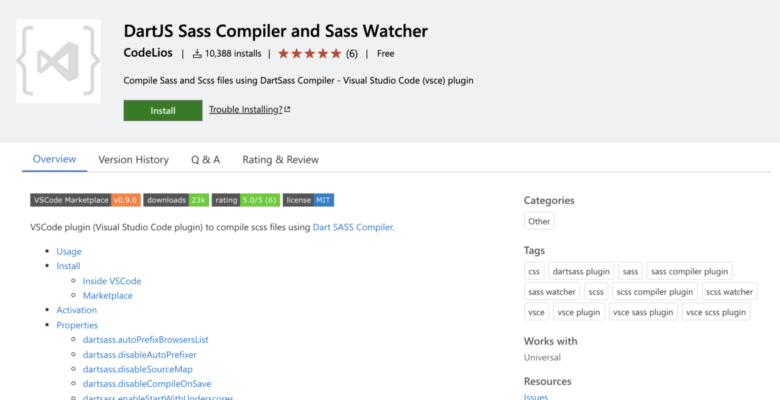
https://marketplace.visualstudio.com/items?itemName=codelios.dartsass
プラグインをインストールするにはエディタ左下にある歯車マークをクリック→拡張機能 もしくはショートカット Mac: command + shift + X 、 Win: Ctrl + Shift + X
検索ボックスが出現するので、 DartJS Sass Compiler and Sass Watcher と入力し、プラグインが表示されたら install
こちらは監視の必要がなく、パーシャルファイルとなる元ファイルを保存することで css ファイルが吐き出されます。
吐き出し先はデフォルトだと Sass ファイルと同階層に吐き出されるので、CSS を専用の CSS フォルダに吐き出したい場合は設定を変更します
表示>コマンドパレット
を表示し、コマンドパレットに
setting.json
を入力。
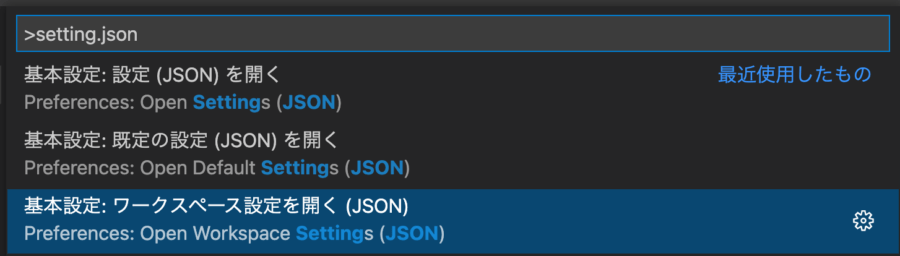
基本設定:ワークスペース設定を開く(JSON)
を選択し、以下のコードを追記します。
"dartsass.targetDirectory": "css",
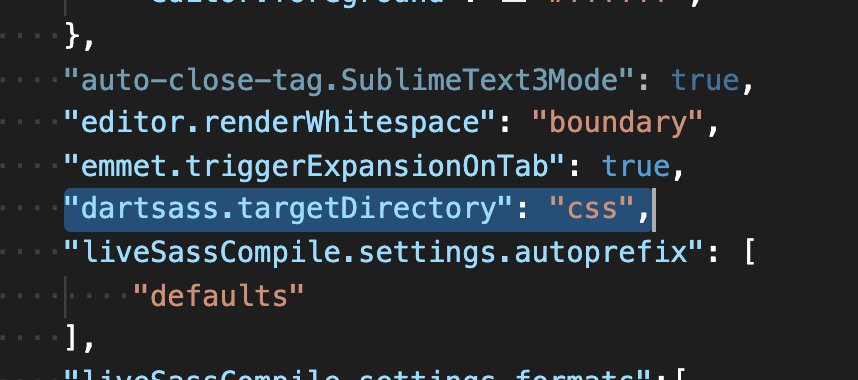
こんな感じになっていればOK
他の設定項目などは環境によって異なりますが、どこかに挿入し、行の最後に「 , 」をつけ忘れないようにしておきましょう。行末に追記する場合「 , 」は不要になります。
Live Sass Compiler
このプラグインは Sass の @import が廃止になるため、利用せずに上記で追記してある Dart Sass の利用を推奨します:2022年1月22日追記
VSCode で SASS をコンパイルするにはこのプラグインが必要になります。
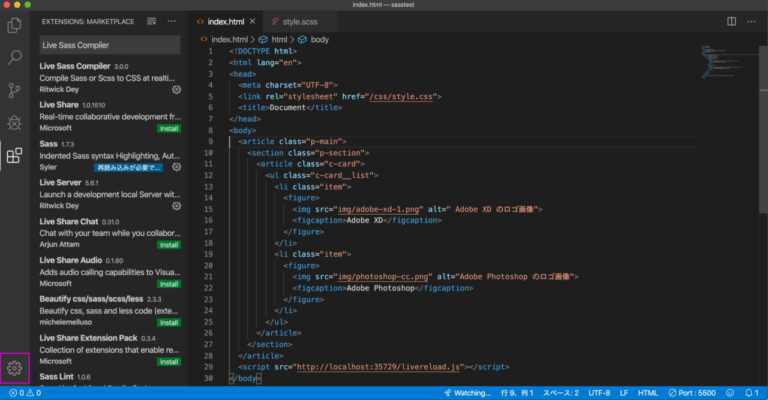
プラグインをインストールするにはエディタ左下にある歯車マークをクリック→拡張機能 もしくはショートカット Mac: command + shift + X 、 Win: Ctrl + Shift + X
検索ボックスが出現するので、 Live Sass Compiler と入力し、プラグインが表示されたら install
エディタの下に

が出現したら、このボタンをクリックすると watch(監視) が開始します。
あとは SASS(SCSS)ファイルを更新して保存すればファイルが存在する場所にcssファイルが吐き出されます。
SASS(SCSS)と css を別のディレクトリで管理したい場合は
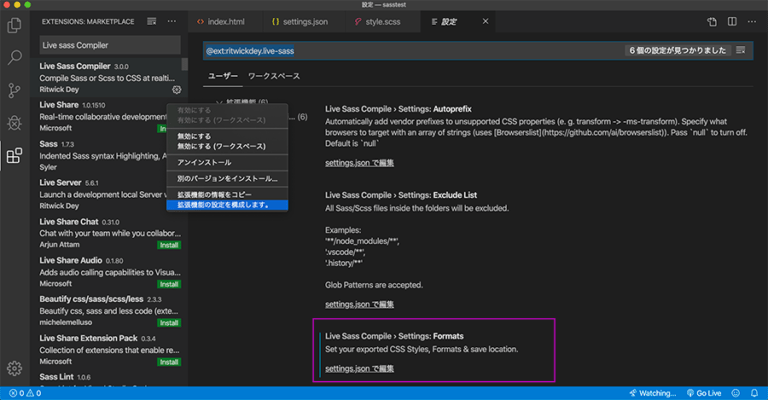
インストールしたときと同様、拡張機能から Live Sass Compiler を検索し、 Live Sass Compile › Settings: Formats の項目より setting.json で編集 を選択
{
    "liveSassCompile.settings.formats":[
        {
            "format": "expanded",
            "extensionName": ".css",
            "savePath": "/css"
        }
    ]
}
と記述。(すでに他の設定がある場合は追記になります。)
AutoPlefixer の設定なども書けますがより詳しい事はドキュメントをどうぞ。
もしインストールしても使えないという場合、 Node 及び node-sass が必要になると思うので、それぞれインストールしてください。
Live Server
ライブリロードを行うプラグインで、ファイル編集時に保存されるとブラウザを自動的に更新。
gulp でライブリロードを使っていましたが、それよりダントツに早くて快適。
拡張機能から Live Server と検索し、インストールするとエディタで開発用ディレクトリを開いている場合下記 Go Live ボタンが出現します。

こちらをクリックすると ポート 5500 版でブラウザに編集中のファイルが表示され、ライブリロードがかかるようになります。
他にインストールしているプラグイン
PHP Server
PHP サーバーを起動するプラグイン。インストールすると右上に

が出現するのでこちらをクリックすれば起動します。
Alignment
json や CSSのソースコード整形を行うプラグイン。 option + = もしくは ctrl + = で実行します。
Atom Sass Snippet
VSCode 用 Atom の Sass Snipet。キーワードを入力すると候補がある場合サジェストされるので、リターンを押せば該当するものが展開されます。
EditorConfig for VS Code
エディタコンフィグを使うためのプラグイン
複数人で開発する場合、人によってエディタの設定が異なるためソースコードのルールが統一化されません。
それを解決するため、 .editorconfig という設定ファイルを利用してコーディングルールを統一化します。
root = true

[*]
end_of_line  = lf
charset      = utf-8
indent_style = space
indent_size  = 2
trim_trailing_whitespace = true
insert_final_newline     = false
設定できる項目
| root | .editorconfigより下の階層を対象とするか。 true で有効 |
| [*] | 対象となるファイル。 * はすべてという意味 |
| end_of_line | 改行コードの指定 |
| charset | 文字コードの指定 |
| indent_style | インデントスタイル space tab が指定可能 |
| indent_size | インデントのサイズ |
| trim_trailing_whitespace | 文末に存在するスペースを取り除くか |
| insert_final_newline | 最後の行を改行するか |
Japanese Language Pack for Visual Studio Code
エディタを日本語化
WordPress Snippets
WordPress のスニペット表示
Auto Rename Tag
shift + return で <br> タグを挿入できます。地味に便利。
Diff
ファイルの比較
コマンドを入力するウィンドウを出すには command + shift + p です
キーボードショートカット
エディタはキーボードショートカットを使えば使うほど便利なんですが、逆に多すぎて覚えるのが大変なので一覧表をおいておきます。
文中 →→ というのは、コマンドを2回連続で実行するものです。
基本操作
折り返しの切り替え
1行が長い場合端で折り返すかの設定を切り替えられます。
option + z
| 内容 | Mac | Windows |
| 切り取り(未選択時は行の切り取り) | command + x | ctrl + x |
| コピー(未選択時は行のコピー) | command + c | ctrl + c |
| 貼り付け | command + v | ctrl + v |
| 行を上に移動 | option + ↑ | alt + ↑ |
| 行を下に移動 | option + ↓ | alt + ↓ |
| 行を上にコピー | shift + option + ↑ | shift + option + ↑ |
| 行を下にコピー | shift + option + ↓ | shift + option + ↓ |
| 行の削除 | shift + command + k | ctrl + shift + k |
| 行を下に挿入 | command + enter | ctrl + enter |
| 行を上に挿入 | shift + command + enter | ctrl + shift + enter |
| ブラケットへ移動 | shift + command + \ | ctrl + shift + \ |
| 行のインデント | command + ] | ctrl + ] |
| 行のインデント解除 | command + [ | ctrl + [ |
| 行の先頭に移動 | home | home |
| 行の最後に移動 | end | end |
| 先頭に移動 | command + ↑ | ctrl + home |
| 末尾に移動 | command + ↓ | ctrl + end |
| 上にスクロール(行) | control + pageup | ctrl + ↑ |
| 下にスクロール(行) | control + pagedown | ctrl + ↓ |
| 上にスクロール(ページ) | command + pageup | alt + pageup |
| 下にスクロール(ページ) | command + pagedown | alt + pagedown |
| 折りたたみ | option + command + [ | ctrl + shift + [ |
| 展開 | option + command + ] | ctrl + shift + ] |
| 再帰的に折りたたむ | command + k →→ command + [ | ctrl + k →→ ctrl + [ |
| 再帰的に展開 | command + k →→ command + ] | ctrl + k →→ ctrl + ] |
| すべて折りたたみ | command + k →→ command + 0 | ctrl + k →→ ctrl + 0 |
| すべて展開 | command + k →→ command + j | ctrl + k →→ ctrl + j |
| 行コメントの追加 | command + k →→ command + c | ctrl + k →→ ctrl + c |
| 行コメントの削除 | command + k →→ command + u | ctrl + k →→ ctrl + u |
| 行コメントの切り替え | command + / | ctrl + / |
| ブロック コメントの切り替え | shift + option + a | shift + alt + a |
| 折り返しの切り替え | option + z | alt + z |
一般
キーボードショートカットを開く
キーボードショートカットが知りたくなったらこのコマンド
command + k →→ command + s
| 内容 | Mac | Windows |
| すべてのコマンドの表示 | shift + command + p , F1 | ctrl + shift + p , F1 |
| クイックオープン | command + p | ctrl + p |
| 新しいウィンドウ | shift + command + n | ctrl + shift + n |
| ウィンドウを閉じる | command + w | ctrl + shift + w |
| ユーザー設定を開く | command + , | ctrl + , |
| キーボードショートカットを開く | command + k →→ command + s | ctrl + k →→ ctrl + s |
ナビゲーション
| 内容 | Mac | Windows |
| ワークスペース内のシンボルへ移動 | command + t | ctrl + t |
| 指定行へ移動 | control + g | ctrl + g |
| ファイルに移動 | command + p | ctrl + p |
| ファイル内のシンボルへ移動 | shift + command + o | ctrl + shift + o |
| 問題を表示する | shift + command + m | ctrl + shift + m |
| 次のエラーまたは警告へ移動 | F8 | F8 |
| 前のエラーまたは警告へ移動 | shift + F8 | shift + F8 |
| グループ内の最近使用したエディターのうち前のエディターを開く | control + shift + tab | ctrl + shift + tab |
| 前に戻る | control + - | alt + ← |
| 次に進む | control + shift + - | alt + → |
| タブによるフォーカスの移動 | control + shift + m | ctrl + m |
検索と置換
選択した項目を次の一致項目に追加
同じキーワードを検索+選択したい場合に
command + d
選択し過ぎた場合 command + u で1つ戻れます。
| 内容 | Mac | Windows |
| 検索 | command + f | ctrl + f |
| 置換 | option + command + f | ctrl + h |
| 次を検索 | command + g | F3 |
| 前を検索 | shift + command + g | shift + F3 |
| 検索中すべての一致項目を選択 | option + enter | alt + enter |
| 選択した項目を次の一致項目に追加 | command + d | ctrl + d |
| 最後に選択した項目を次の一致項目に移動 | command + k →→ command + d | ctrl + k →→ ctrl + d |
| 大文字と小文字を区別する | option + command + c | alt + c |
| 単語単位で検索する | option + command + w | alt + w |
| 正規表現を使用する | option + command + r | alt + r |
マルチカーソル、選択
マルチカーソルはすごく便利。使ったことがない人はぜひ使ってみてください。
カーソルを挿入
option + クリック
ボックス選択
ドラッグやキーボードを利用して連続する行を複数選択も可能です
shift + option + ドラッグ もしくは shift + option + command + 方向キー
一致するすべての出現箇所を選択
同じ項目をすべて選択できます。
shift + command + l
すべての出現箇所を変更 に command + f2 もあるのですが、違いがわかりません…
| 内容 | Mac | Windows |
| カーソルを挿入 | option + クリック | alt + クリック |
| カーソルを上に挿入 | option + command + ↑ | ctrl + alt + ↑ |
| カーソルを下に挿入 | option + command + ↓ | ctrl + alt + ↓ |
| 直前のカーソル操作を元に戻す | command + u | ctrl + u |
| カーソルを行末に挿入 | shift + option + i | shift + alt + i |
| 現在の行を選択 | command + l | ctrl + l |
| 一致するすべての出現箇所を選択 | shift + command + l | ctrl + shift + l |
| すべての出現箇所を変更 | command + F2 | ctrl + F2 |
| 選択範囲を拡大 | control + shift + command + → | shift + alt + → |
| 選択範囲を縮小 | control + shift + command + ← | shift + alt + ← |
| ボックス選択 | shift + option + ドラッグ | shift + alt + ドラッグ |
| ボックス選択 | shift + option + command + 方向キー | ctrl + shift + alt + 方向キー |
| ページの上へボックス選択 | shift + option + command + pageup | ctrl + shift + alt + pageup |
| ページの下へボックス選択 | shift + option + command + pagedown | ctrl + shift + alt + pagedown |
言語編集
ドキュメントのフォーマット
インデントを一発で整形できます。ノーインデントのソースを整形したい場合など便利ですね。
shift + option + f
| 内容 | Mac | Windows |
| 候補をトリガー | control + space | ctrl + space |
| パラメーター ヒントをトリガー | shift + command + space | ctrl + shift + space |
| ドキュメントのフォーマット | shift + option + f | shift + alt + f |
| 選択範囲のフォーマット | command + k →→ command + f | ctrl + k →→ ctrl + f |
| 定義へ移動 | F12 | F12 |
| 定義をここに表示 | option + F12 | alt + F12 |
| 定義を横に開く | command + k →→ F12 | ctrl + k →→ F12 |
| クイック修正 | command + . | ctrl + . |
| すべての参照の検索 | shift + F12 | shift + F12 |
| シンボルの名前を変更 | F2 | F2 |
| 末尾の空白のトリミング | command + k →→ command + x | ctrl + k →→ ctrl + x |
| 言語モードの変更 | command + k →→ m | ctrl + k →→ m |
エディター管理
| 内容 | Mac | Windows |
| ウィンドウを閉じる | command + w | ctrl + F4 , ctrl + w |
| ワークスペースを閉じる | command + k →→ f | ctrl + k →→ f |
| エディターの分割 | command + \ | ctrl + \ |
| 最初のエディターグループにフォーカス | command + 1 | ctrl + 1 |
| 2 番目のエディターグループにフォーカス | command + 2 | ctrl + 2 |
| 3 番目のエディターグループにフォーカス | command + 3 | ctrl + 3 |
| 前のグループにフォーカス | command + k →→ command + ← | ctrl + k →→ ctrl + ← |
| 次のグループにフォーカス | command + k →→ command + → | ctrl + k →→ ctrl + → |
| エディターを左へ移動 | command + k →→ shift + command + ← | ctrl + shift + pageup |
| エディターを右へ移動 | command + k →→ shift + command + → | ctrl + shift + pagedown |
| エディターグループを左側に移動する | command + k →→ ← | ctrl + k →→ ← |
| エディターグループを右側に移動する | command + k →→ → | ctrl + k →→ → |
ファイル管理
ファインダー(エクスプローラー)でアクティブ ファイルを表示する
エディタから現在アクティブになっているファイルをファインダー(エクスプローラー)で開けます。
command + k →→ r
アクティブ ファイルのパスのコピー
現在のアクティブファイルのパスをクリップボードに貼り付け。
command + k →→ p
| 内容 | Mac | Windows |
| 無題の新規ファイル | command + n | ctrl + n |
| ファイルを開く | command + o | ctrl + o |
| 保存 | command + s | ctrl + s |
| 名前を付けて保存 | shift + command + s | ctrl + shift + s |
| すべて保存 | option + command + s | ctrl + k + s |
| エディターを閉じる | command + w | ctrl + F4 |
| すべてのエディターを閉じる | command + k →→ command + w | ctrl + k →→ ctrl + w |
| 閉じたエディターを再度開く | shift + command + t | ctrl + shift + t |
| エディターを保持 | command + k →→ enter | ctrl + k →→ enter |
| グループ内の最近使用したエディターのうち次のエディターを開く | control + tab | ctrl + tab |
| グループ内の最近使用したエディターのうち前のエディターを開く | control + shift + tab | ctrl + shift + tab |
| アクティブ ファイルのパスのコピー | command + k →→ p | ctrl + k →→ p |
| ファインダー(エクスプローラー)でアクティブ ファイルを表示する | command + k →→ r | ctrl + k →→ r |
| 新しいウィンドウでアクティブ ファイルを開く | command + k →→ o | ctrl + k →→ o |
表示
サイドバーの表示切り替え
サイドバーが邪魔なときはショートカットでサクッと隠せます。
command + b
| 内容 | Mac | Windows |
| 全画面表示の切り替え | control + command + f | F11 |
| エディターグループの縦/横レイアウトを切り替える | option + command + 1 | shift + alt + 1 |
| 拡大 | command + = | ctrl + = |
| 縮小 | shift + command + - | ctrl + - |
| サイドバーの表示の切り替え | command + b | ctrl + b |
| エクスプローラーを表示 | shift + command + e | ctrl + shift + e |
| 検索の表示 | shift + command + f | ctrl + shift + f |
| Git SCM を表示 | control + shift + g | ctrl + shift + g |
| デバッグの表示 | shift + command + d | ctrl + shift + d |
| 拡張機能を表示 | shift + command + x | ctrl + shift + x |
| 複数のファイルで置換 | shift + command + h | ctrl + shift + h |
| 検索の詳細を切り替え | shift + command + j | ctrl + shift + j |
| 新しいターミナル(コマンド プロンプト)を開く | shift + command + c | ctrl + shift + c |
| 出力の切り替え | shift + command + u | ctrl + shift + u |
| プレビューを開く | shift + command + v | ctrl + shift + v |
| プレビューを横に表示 | command + k →→ v | ctrl + k →→ v |
| Zen Mode の切り替え | command + k →→ z | ctrl + k →→ z |
デバッグ
| 内容 | Mac | Windows |
| 全画面表示の切り替え | control + command + f | F11 |
| エディターグループの縦/横レイアウトを切り替える | option + command + 1 | shift + alt + 1 |
| 拡大 | command + = | ctrl + = |
| 縮小 | shift + command + - | ctrl + - |
| サイドバーの表示の切り替え | command + b | ctrl + b |
| エクスプローラーを表示 | shift + command + e | ctrl + shift + e |
| 検索の表示 | shift + command + f | ctrl + shift + f |
| Git SCM を表示 | control + shift + g | ctrl + shift + g |
| デバッグの表示 | shift + command + d | ctrl + shift + d |
| 拡張機能を表示 | shift + command + x | ctrl + shift + x |
| 複数のファイルで置換 | shift + command + h | ctrl + shift + h |
| 検索の詳細を切り替え | shift + command + j | ctrl + shift + j |
| 新しいターミナル(コマンド プロンプト)を開く | shift + command + c | ctrl + shift + c |
| 出力の切り替え | shift + command + u | ctrl + shift + u |
| プレビューを開く | shift + command + v | ctrl + shift + v |
| プレビューを横に表示 | command + k →→ v | ctrl + k →→ v |
| Zen Mode の切り替え | command + k →→ z | ctrl + k →→ z |
ターミナル
| 内容 | Mac | Windows |
| 統合ターミナルの切り替え | control + ` | ctrl + ` |
| 新しい統合ターミナルの作成 | control + shift + ` | ctrl + shift + ` |
| 選択内容のコピー | command + c | ctrl + c |
| アクティブなターミナルに貼り付け | command + v | ctrl + v |
| 上にスクロール(行) | command + ↑ | ctrl + ↑ |
| 下にスクロール(行) | command + ↓ | ctrl + ↓ |
| 上にスクロール(ページ) | pageup | shift + pageup |
| 下にスクロール(ページ) | pagedown | shift + pagedown |
| 一番上にスクロール | command + home | ctrl + home |
| 一番下にスクロール | command + end ` | ctrl + end |
僕は MacBook Pro の英字キーボードを使っているのですが、 PageUp PageDown などは存在しないため、 fn + → を押す必要があるので同時に押すボタンが多すぎてちょっと無理だなっていう組み合わせもあります。
こういう時物理キーが欲しくなりますね。
なお英字キーボードの場合 ¥ キーがありませんが、 \ キーが該当になります。
お役に立てたらお願いします🙇




Comments